Debugging
This page is for developers who need to look inside a running site when the logs don't explain a problem. It covers 3 tools:
- Xdebug, to step through PHP code in your IDE
- Session cookies with curl, to request pages that need a login
- Docker Compose commands, to inspect the containers directly
For container and Drupal logs, see Logs.
Xdebug
The Xdebug website describes the tool as follows:
Xdebug is an extension for PHP, and provides a range of features to improve the PHP development experience.
Vortex comes with Xdebug pre-installed and configured for local development thanks to Lagoon images.
Code coverage doesn't need Xdebug. The CLI image also installs PCOV, a coverage-only PHP extension, and PHPUnit collects coverage through PCOV whenever it's loaded, so tests report coverage with Xdebug turned off.
➡️ See PHPUnit
Usage
Xdebug is off by default. ahoy debug turns it on by recreating the cli,
php, and nginx containers with XDEBUG_ENABLE=true:
- Ahoy
- Docker Compose
ahoy debug # Restart containers with Xdebug enabled.
# Restart containers with Xdebug enabled.
XDEBUG_ENABLE=true docker compose up -d cli php nginx
When it turns Xdebug on, ahoy debug prints
Enabled debug configuration. Use 'ahoy up' to disable. If Xdebug is
already on, it prints
Debug configuration is already enabled. Use 'ahoy up' to disable. and
changes nothing.
Lagoon images turn Xdebug on only when XDEBUG_ENABLE is true, in any
letter case, so a value such as 1 leaves it off.
Xdebug connects back to port 9003, its default, on host.docker.internal.
Where that name doesn't resolve, such as on Linux, it connects to the
container's default gateway instead. Make sure your IDE listens on port
9003.
To turn it off, recreate the containers without the variable:
- Ahoy
- Docker Compose
ahoy up # Restart containers with Xdebug disabled.
# Restart containers with Xdebug disabled.
docker compose up -d cli php nginx
XDEBUG_ENABLE can also come from .env or .env.local, which Ahoy loads
before every command. With XDEBUG_ENABLE=true in either file, every
ahoy up starts the containers with Xdebug on, so remove the line to turn
Xdebug off.
ahoy info shows whether Xdebug is on at the moment.
CLI
While Xdebug is on, a PHP script you run through a shell in the cli
container, such as with ahoy cli, starts a debugging session with no
browser extension. The Lagoon images export XDEBUG_TRIGGER in every shell
session there. They also set PHP_IDE_CONFIG to name the server after the
local development URL, so PhpStorm reuses the path mapping you set for web
requests.
Drush is the exception you're most likely to hit. Its shell wrapper,
vendor/bin/drush, sets XDEBUG_MODE=off before it starts PHP, for
performance. To keep Xdebug on, pass --xdebug, as in
ahoy drush --xdebug <command>.
If a breakpoint never fires in another command-line tool, check that tool's documentation: some tools switch Xdebug off in their own way.
IDE configuration
This section covers PhpStorm. Other IDEs need the same mapping between your
project root and /app in the container.
PhpStorm
By default, PhpStorm stops on a debug connection it can't map to your project and prompts you to map it. It accepts connections only while listening is on, and the toolbar button with a little bug on it turns listening on.
PhpStorm needs the mapping because the code runs in the container, which
counts as a remote server. The mapping matches a local directory to /app
in the container. You set it once, and PhpStorm remembers it.
To use Xdebug on the project for the first time, starting from a fully working site, follow these steps:
-
Install the Xdebug helper extension for your browser:
- Chrome Xdebug Helper by JetBrains extension.
- Firefox Xdebug Helper by JetBrains extension.
- Edge Xdebug Helper by JetBrains add-on.
-
In the extension, turn on debugging for the site, as its instructions describe. The extension sets the
XDEBUG_SESSIONcookie, which starts a debugging session for each request. -
To start listening for debug connections, click the toolbar button with the little bug in PhpStorm.
-
Set a breakpoint in your IDE.
index.phpin your web root is a good place to start. -
To turn on Xdebug in the containers, run
ahoy debugorXDEBUG_ENABLE=true docker compose up -d cli php nginx. -
Refresh the page in your browser. PhpStorm stops on your breakpoint and prompts you to map the incoming connection to a directory in your project.
-
In the prompt, map your project root to
/app.
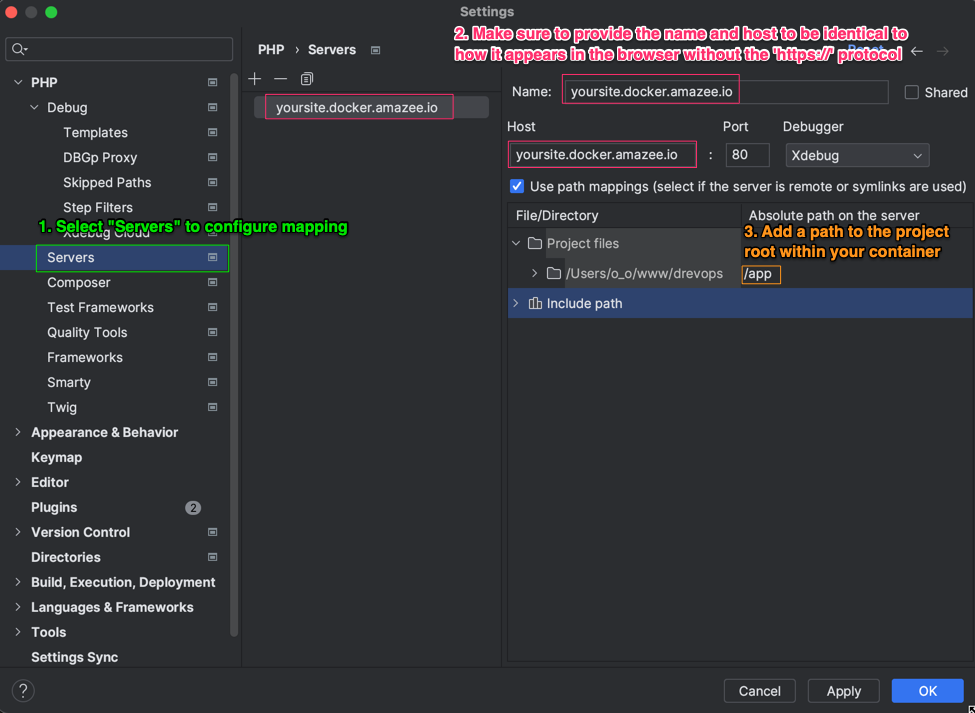
Confirm that debugging works: refresh the page again, and PhpStorm stops on the breakpoint without prompting for a mapping.
For more detail, see the following pages:
- Configure Xdebug in the PhpStorm documentation
- Setting up Xdebug with Lagoon in the Lagoon documentation
Tips and tricks
After your first Xdebug session works, a few changes to PhpStorm's Debug settings make everyday debugging smoother:
- Disable the following options:
- Break at first line in PHP scripts
- Force break at first line when no path mapping specified
- Force break at first line when a script is outside the project
- Increase Max. simultaneous connections to
5or more, so a debug session can't get stuck without showing up in the IDE.
Testing authenticated pages with curl
Use curl with session cookies to request pages that need a login, such as
admin pages and protected routes, without opening a browser. It's a tool for
ad-hoc debugging; automated tests belong in Behat or PHPUnit.
When to use
The curl approach suits these cases:
- Quick ad-hoc debugging of admin page errors (500 errors, permission issues)
- Investigating issues without spinning up a browser
- Verifying page content during troubleshooting
- One-off checks that don't warrant a formal test
Step-by-step process
The following commands sign in once and reuse the saved session cookie for later requests:
- Ahoy
- Docker Compose
# Step 1: Get the site URL from project info
ahoy info
# Note the URL (e.g., http://your-project.docker.amazee.io)
# Step 2: Get a one-time login URL
ahoy login
# Output example:
# http://your-project.docker.amazee.io/user/reset/1/1234567890/abc123/login
# Step 3: Authenticate and save session cookies
# Replace LOGIN_URL with the full URL from Step 2
curl -k -c .data/cookies.txt -L "LOGIN_URL"
# Step 4: Access any authenticated page using saved cookies
# Replace SITE_URL with your site URL from Step 1
curl -k -b .data/cookies.txt "SITE_URL/admin/content"
# Step 5: Check for specific errors in page output
curl -k -b .data/cookies.txt "SITE_URL/admin/content" \
  | grep -iE "(error|exception|warning|notice)"
# Step 1: Get the site URL from project info
docker compose exec cli ./vendor/bin/vortex-info
# Note the URL (e.g., http://your-project.docker.amazee.io)
# Step 2: Get a one-time login URL
docker compose exec cli drush uli
# Output example:
# http://your-project.docker.amazee.io/user/reset/1/1234567890/abc123/login
# Step 3: Authenticate and save session cookies
# Replace LOGIN_URL with the full URL from Step 2
curl -k -c .data/cookies.txt -L "LOGIN_URL"
# Step 4: Access any authenticated page using saved cookies
# Replace SITE_URL with your site URL from Step 1
curl -k -b .data/cookies.txt "SITE_URL/admin/content"
# Step 5: Check for specific errors in page output
curl -k -b .data/cookies.txt "SITE_URL/admin/content" \
  | grep -iE "(error|exception|warning|notice)"
Confirm that the session works: the page from step 4 doesn't contain
You are not authorized to access this page., the message on Drupal's
access denied page.
Curl flags reference
The following table explains the curl flags that these commands use:
| Flag | Purpose |
|---|---|
-k | Ignore SSL certificate errors (required for self-signed local certs) |
-c FILE | Save cookies to FILE after request |
-b FILE | Send cookies from FILE with request |
-L | Follow redirects (required for login flow) |
Important notes
The following points apply to the saved cookies and the login links:
- Store cookies in the
.data/directory: Git ignores it, so a session cookie doesn't end up in a commit. - Cookies expire after the session timeout, so regenerate them as needed.
- Login URLs have the format
http://SITE/user/reset/UID/TIMESTAMP/HASH/login. - Login URLs from
ahoy logincan only be used once.ahoy loginalso unblocks user 1 before it generates the link, which a plaindrush ulidoesn't.
Container debugging
To see what a container is doing, or to open a shell or a database prompt inside it:
# Check container status
docker compose ps

# View container logs
docker compose logs [service_name]
# Examples:
docker compose logs cli
docker compose logs database

# Access container shell
docker compose exec cli bash
docker compose exec database mysql -u drupal -p drupal
The database name, user, and password are all drupal in the local stack,
so enter drupal when mysql prompts for the password.